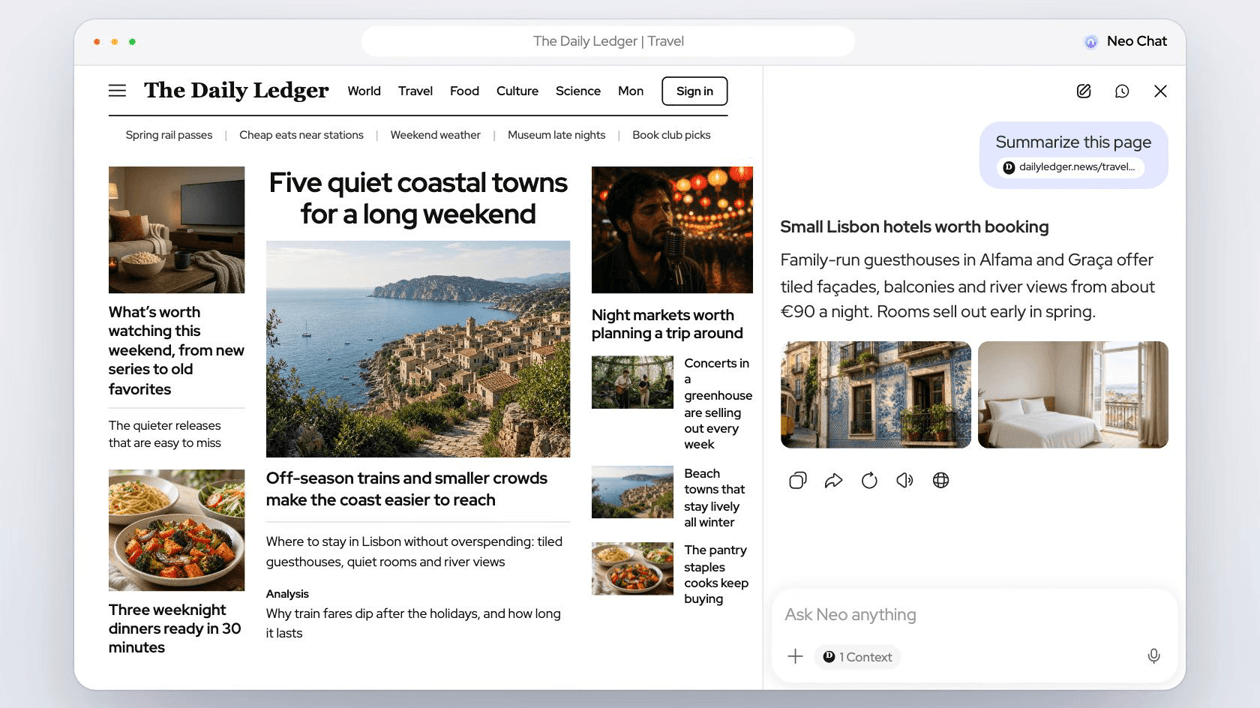
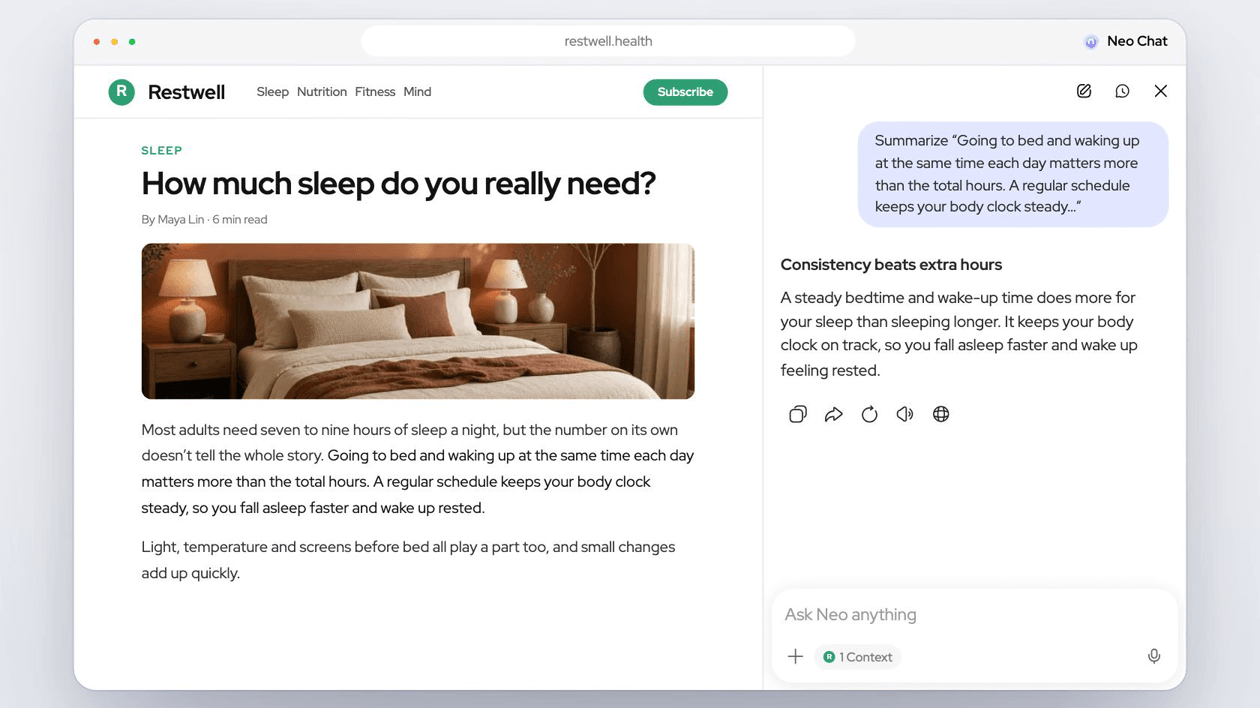
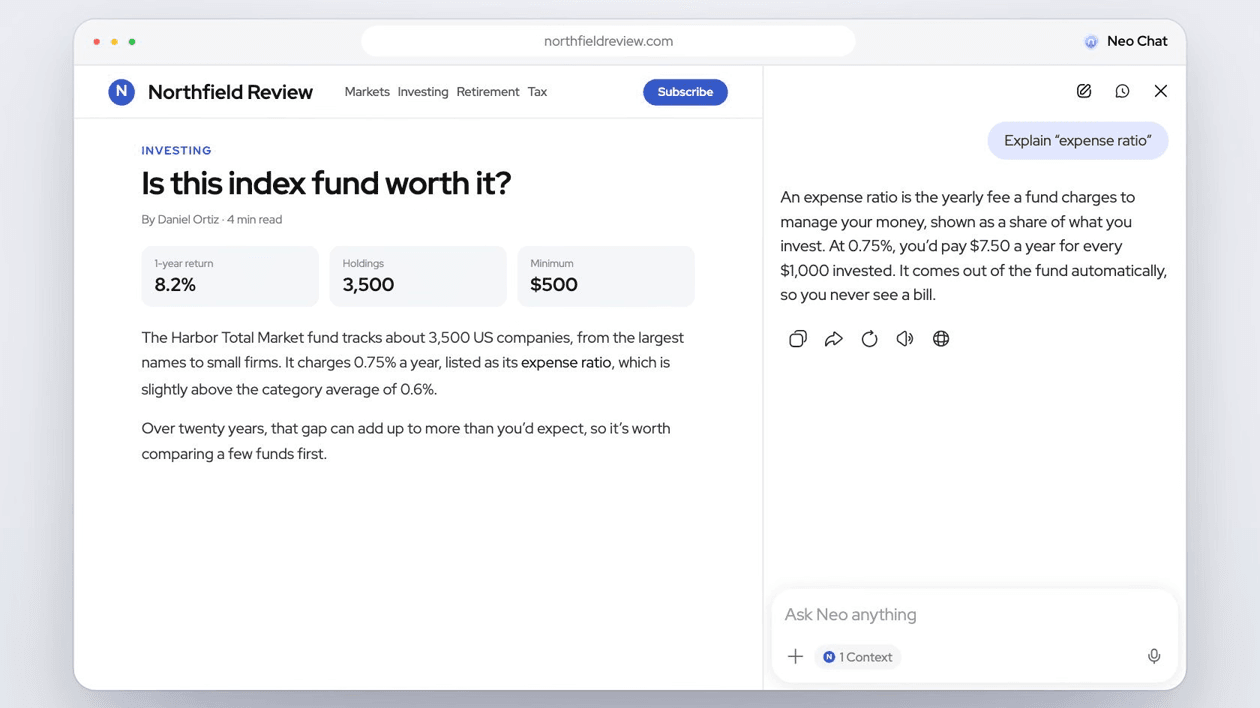
Neo Chat opens in a panel beside the page you’re on, so you can ask about what you’re reading without switching tabs. Neo already knows which page you’re looking at.
How to
Click Neo Chat at the right end of the toolbar, or press Ctrl + I (⌘ + I on Mac).
Type your question in the chat box. The current page is included as context.
Keep the conversation going with follow-up questions, or start a new chat for a new topic.
Ways to ask
Fast
Quick answers for everyday questions.
Thinking
Takes longer to work through questions that need planning, weighing options or several steps.
Voice
Click the microphone to speak your question instead of typing it.
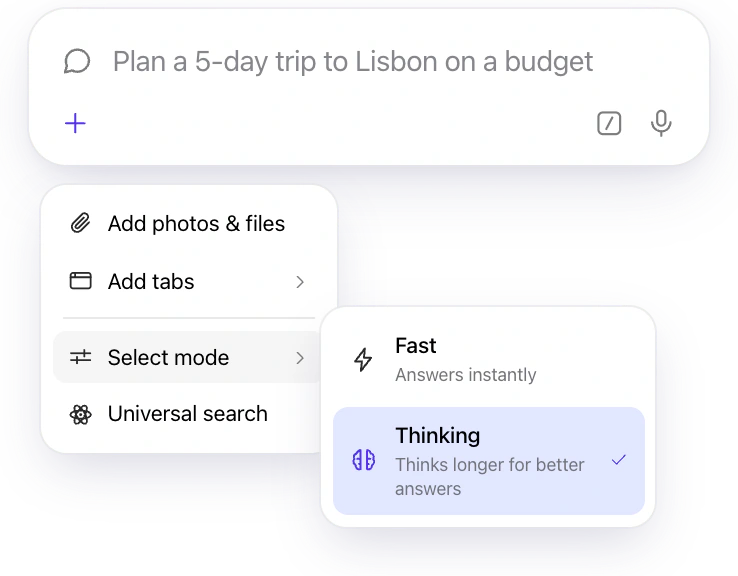
Turn on Thinking to plan a trip on a budget, weigh your options, or work through a tricky decision. Neo takes a little longer and shows its reasoning along the way.
How to
In the chat box, switch from Fast to Thinking.
Ask your question. Switch back to Fast for quick questions.
Bring information from your open tabs together to compare your options, pull the key points out of several articles, or turn hotel, flight and restaurant tabs into a trip plan.
Neo comparing three headphones from three open tabs.
How to
In the chat box, click + and choose “Add tabs”, then select the tabs to include.
Or type @ and pick a tab by name to mention it in your message.
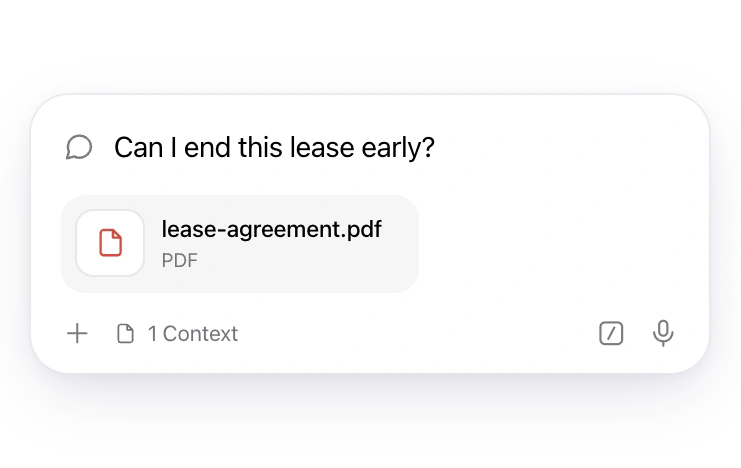
Ask your question. The tabs you added are shown as contexts above the message box.
Pulling together the key points from several articles.
When you hover over a link, a Neo icon appears next to it. Peek opens a preview of the page without losing your place. Summary gives you the key takeaways in the chat.
How to
Point at a link and click the Neo icon that appears next to it.
Choose Peek to preview the page, or Summary to get the key points in Neo Chat.
In a preview, choose Expand to open the page in a full tab, or Close to go back.
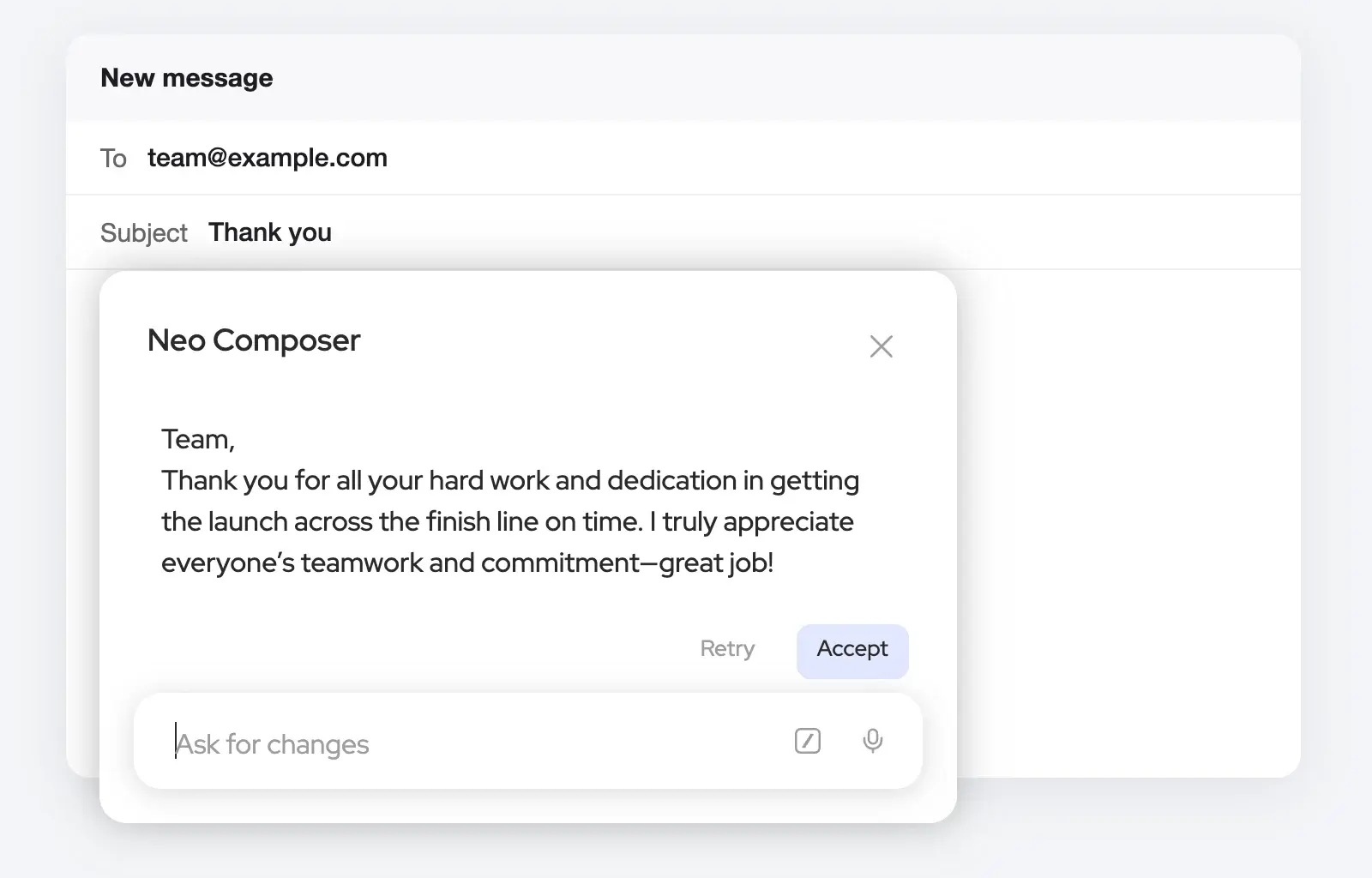
Neo Composer writes for you where you’re already typing: an email, a social post, a review, a form or a document. Describe what you want, check the draft, and add it with one click. Nothing is added to your text until you accept it.
How to
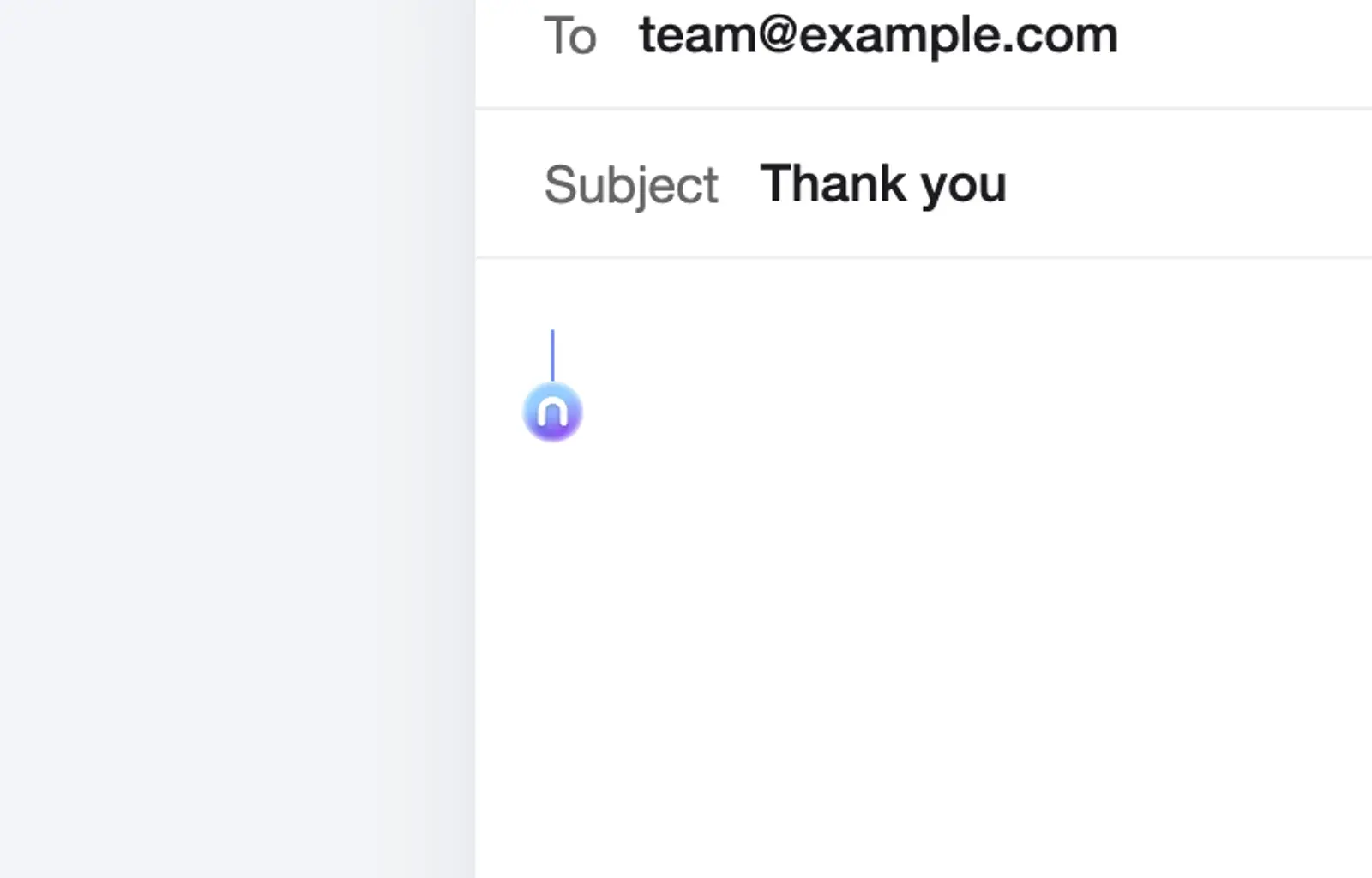
Click in a text box on any website. Neo’s text cursor has a small ring at its foot .
Point at the ring. It turns into the Neo icon . Click it.
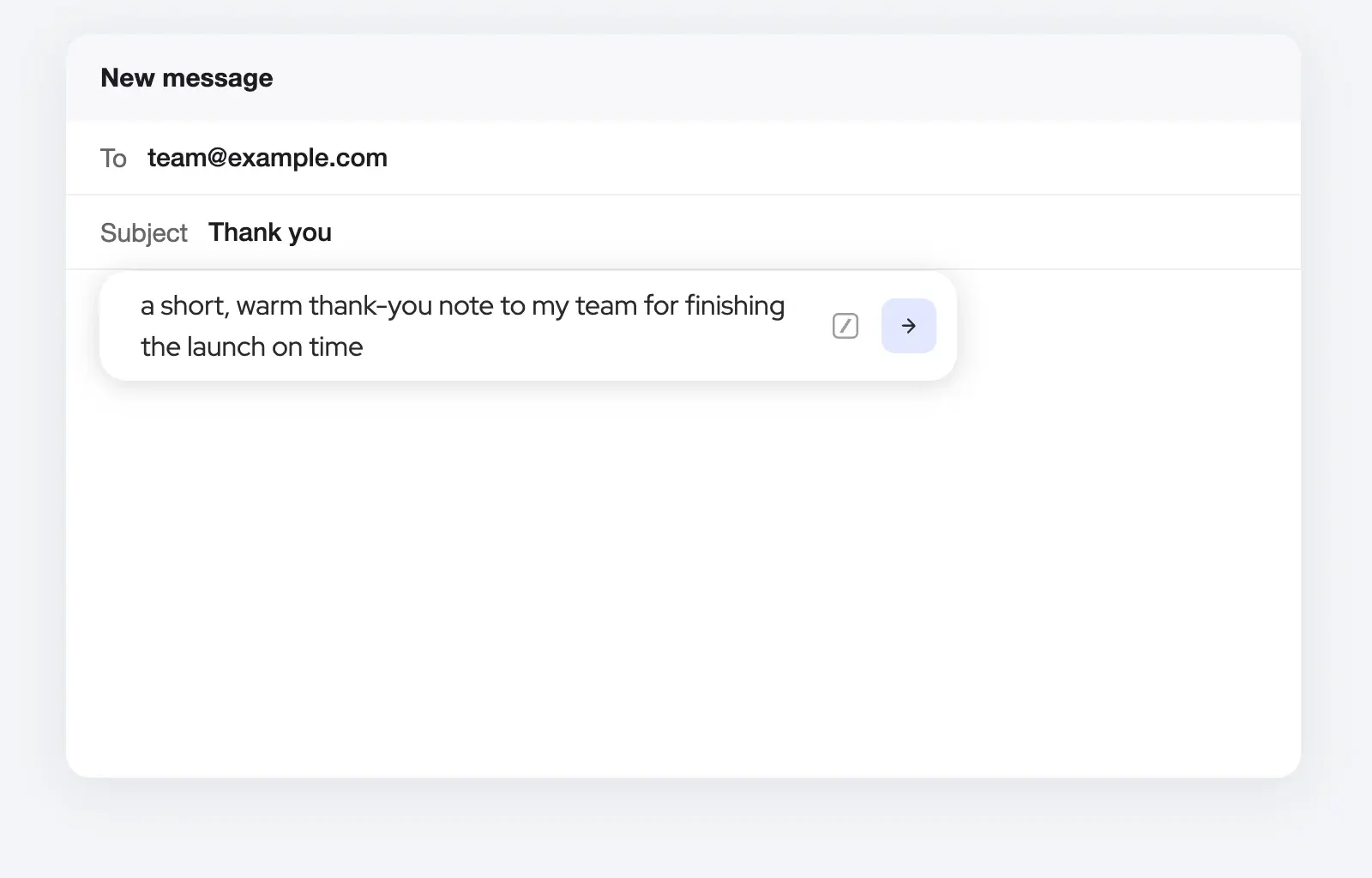
In “Describe what you want to write...”, say what you need, like “a short thank-you note to my team”. Type / to use one of your snippets, or click the microphone to speak.
Press Enter. Your draft appears in the Neo Composer panel, where you can also edit it yourself.
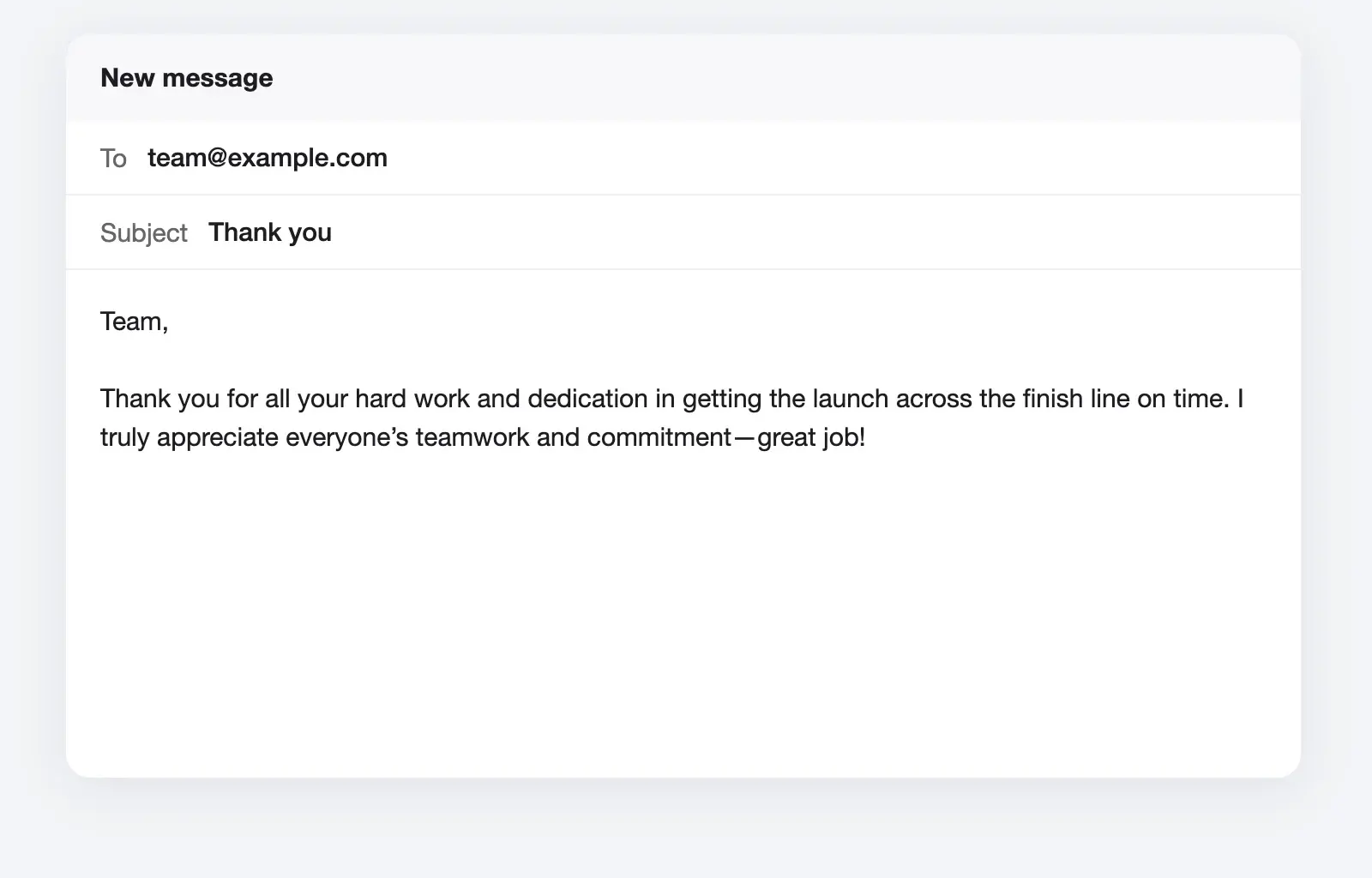
Choose Accept to add the draft to the text box.
In the Neo Composer panel
Accept
Adds the draft at your cursor. Any text already in the box stays where it is.
Retry
Writes the draft again from the same request.
Ask for changes
Tell Neo what to change, like “make it shorter” or “more formal”, and send it to get a new version.
Create an invitation, visualize an idea for your home, or make something funny to share. Describe what you want and refine it until you love the result.
How to
In Neo Chat, describe the image you want, for example “a birthday invitation with balloons for Maya’s 8th”.
Ask for changes in plain words, like “make it blue” or “add a dog”.
Find everything you’ve created in the Gallery. Browse by date, search, or sort by newest.
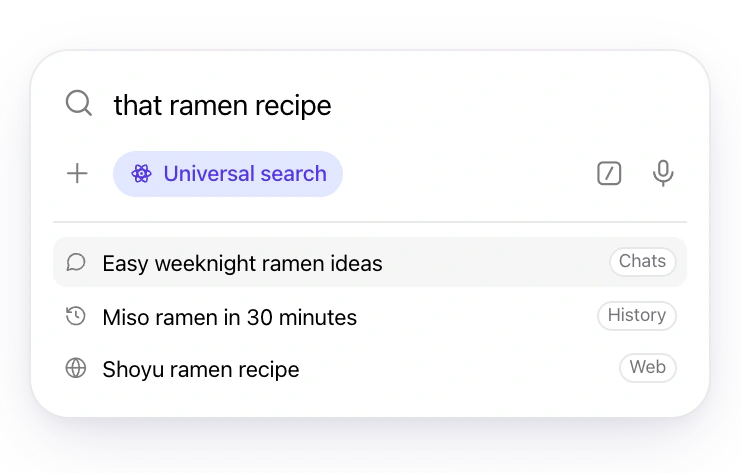
Every conversation is kept in Chat History, so you can pick it up later. Universal search looks through your past chats, your browsing history and the web in one go.
How to
Choose Chat History in the side bar to see your conversations.
Search for a chat, or pin, rename or delete it from its menu.
To find something you came across before, type it in the Magic Box. Matching chats and pages from your history appear with the web results.
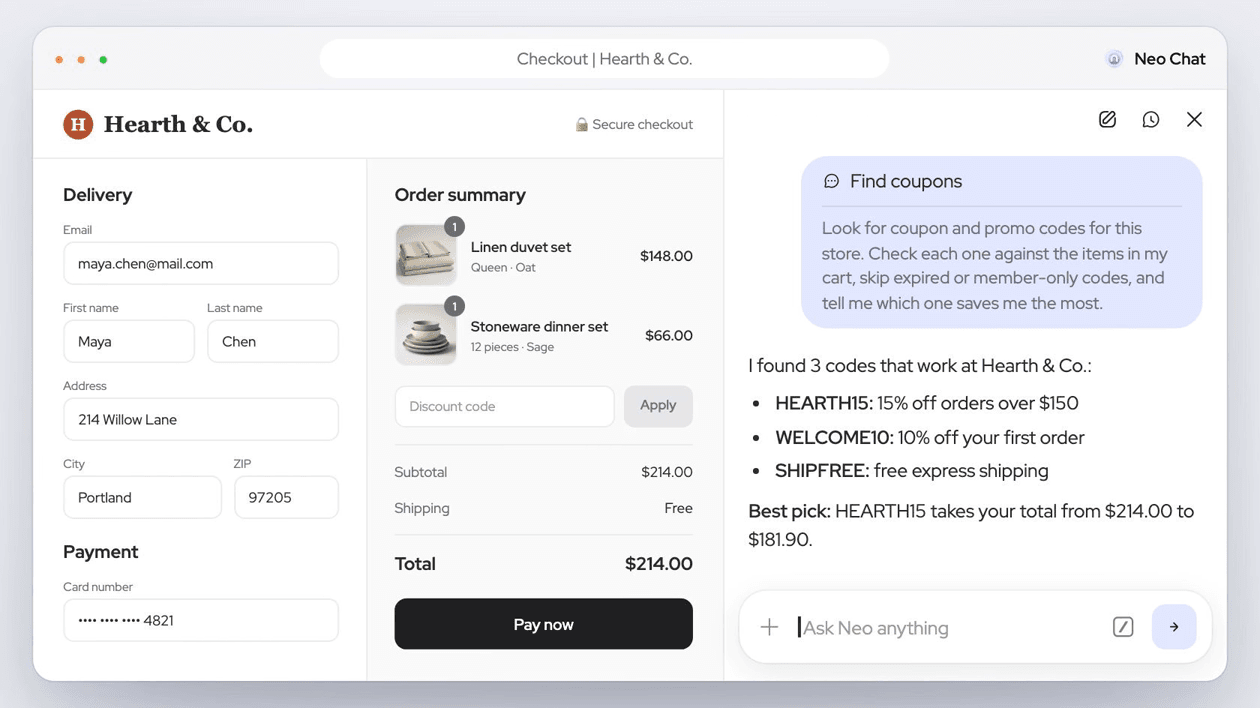
A snippet is a saved prompt with a short name, such as “Find coupons” or “Make this shorter”. Insert it into any chat instead of typing the whole instruction again.
Use a snippet
In the chat box, type / to see your snippets, or choose “Insert a snippet”.
Pick one. It drops into the message box as a single chip, and unfolds into the full prompt when you send it.
Create or edit snippets
Open Neo Settings › AI Mode, choose Manage next to “Manage Snippets”, then choose “Add Snippet”.
Enter a snippet name and the prompt, then choose Save.
With memories on, Neo saves details from your chats, like your dietary preferences or where you live, and uses them in future answers so you don’t have to repeat yourself. Memories need you to be signed in.
How to
Open Neo Settings › AI Mode and choose Manage next to “Manage Memories”.
Choose “Add memory” to tell Neo something directly, or select a memory to edit or remove it.
Choose “Delete all memories” to start over.
Bring memories from another AI
In Manage Memories, choose Import under “Import Memories”.
Copy the prompt Neo gives you into a chat with your other AI provider.
Paste the results back into Neo and choose “Add to memory”.
Some Neo features run on a small AI model on your own device, so the data they use never leaves it. Your interests for the News Feed, for example, are worked out locally.
How to
Local AI is on from the start. In Neo Settings › AI Mode its switch reads “Local AI is enabled”.
To turn it off, switch it off. It then reads “Enable Local AI”, and some Neo features, like AI-generated interests, stop working.
Switch “Enable Local AI” back on to turn it on again.
Neo finds relevant events as you browse, like a concert you looked up or a booking confirmation, and reminds you when they are coming up. Reminders start off, so you choose whether to use them.
How to
Click Reminders in the side bar. While reminders are off, the panel says “Reminders are turned off”. Choose Enable.
Or turn on Reminders in Neo Settings › Personalization.
Suggested events are under “For You”, and the ones you keep are under “Saved”. Choose “Save reminder” to keep an event, or Snooze or Dismiss a reminder when it comes up.
Still need help?
Choose “Contact Neo Team” in Neo’s side bar to tell us what’s going on, or check the FAQ.
 at the right end of the toolbar, or press Ctrl + I (⌘ + I on Mac).


 .
 . Click it.

 in the side bar to see your conversations.
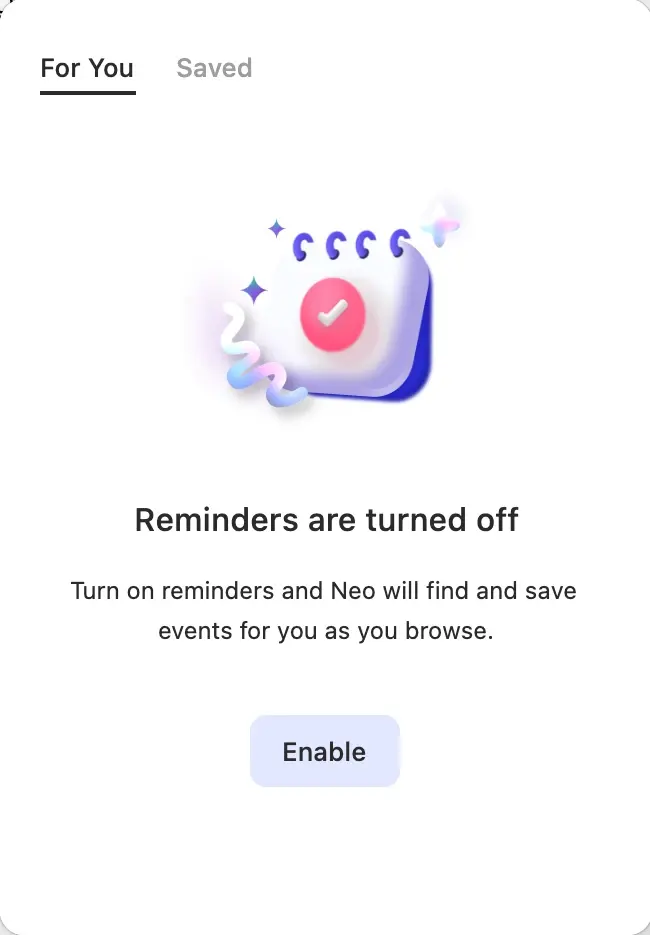
 in the side bar. While reminders are off, the panel says “Reminders are turned off”. Choose Enable.