Security & privacy

The VPN, Privacy Protection, scam protection and the settings behind them.

Every security setting, explained

Neo is protected from the first launch, so you don’t have to change anything. If you want to understand or adjust a protection, open Neo Settings from the bottom of the side bar and choose Security. Here is every setting you’ll find there, in order.

On from the start

Safe browsing
Scans the addresses you visit for malicious threats and blocks scam, phishing and dangerous sites. Its button reads Disable while it’s on. Turning it off removes that protection.
Email Phishing Protection
Scans your Gmail emails for phishing and warns you about suspicious ones. Turn it off to stop scanning.
AdBlock
Blocks ads and trackers on every site. Turn it off and nothing is blocked, anywhere.
Allow acceptable ads
Lets ads that count as acceptable through. Turn it off to block them too.
Show blocked ads count
Shows the number on the shield . Turning it off only hides the number.

Off until you turn them on

Anti-Fingerprinting
Choose Manage to turn it on. It masks ten details of your device that sites could combine to recognize you.
Advanced Privacy
Choose Manage for “Remove tracking IDs from links” and “Prevent referrer tracking”. Both start off.

Lists and more settings

VPN
Choose Manage for the VPN settings: the toolbar button, flag badges, the Kill Switch, untrusted networks and auto-connect.
Excluded Sites from AdBlocking
Sites where ads are shown. Empty to begin with.
Advanced Adblock Settings
The filter lists AdBlock uses. EasyPrivacy and ABP filters are on to begin with.

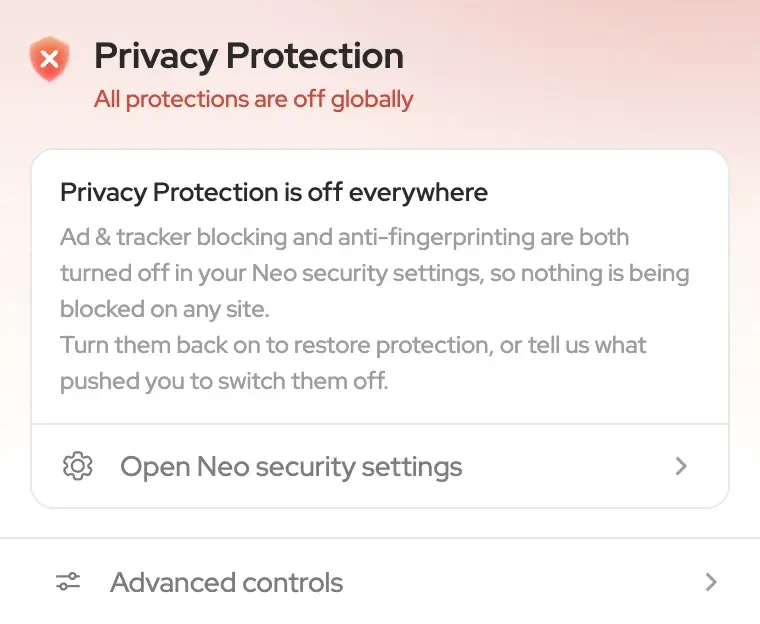
These settings apply to every site. The Privacy Protection panel, under the shield in the address bar, changes protection for the site you’re on only. If a protection is off here, the panel shows “Disabled globally” next to it. If both AdBlock and Anti-Fingerprinting are off, it says “All protections are off globally”.
Using the built-in VPN

VPN by Norton sends your browsing through an encrypted connection to a location you choose. Websites see that location’s virtual IP address instead of yours, and other people on your network can’t see what you’re doing.

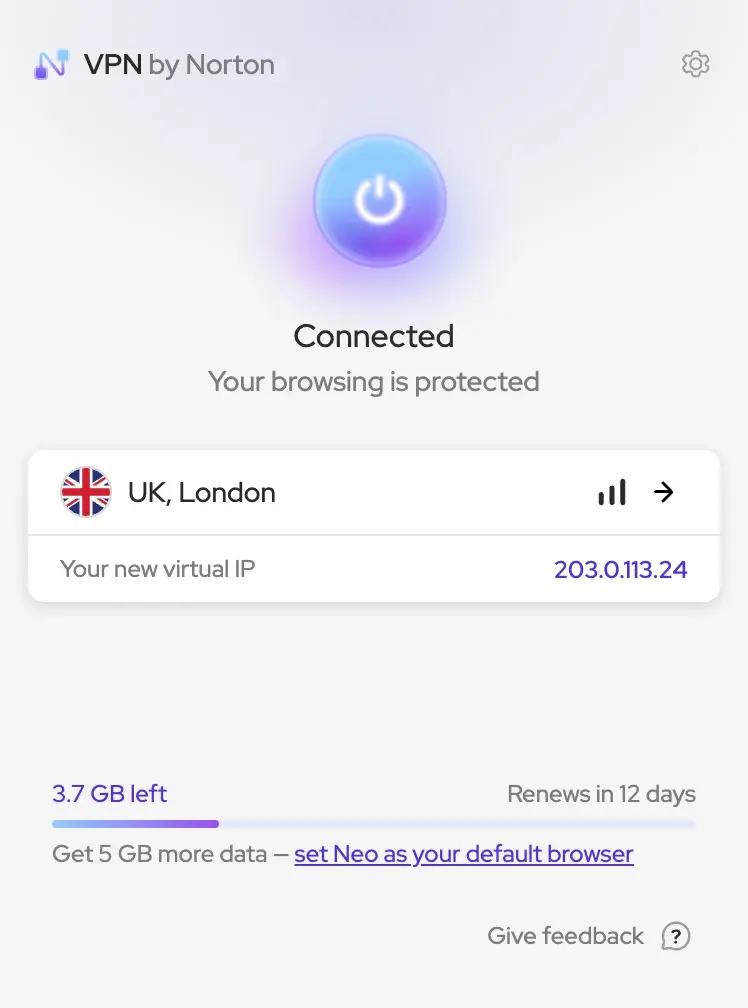
The VPN panel, connected through UK, London. It says “Your browsing is protected”, shows the new virtual IP address, and how much VPN data is left this month.

What it does for you

  • Private on any Wi-FiIn cafés, airports and hotels your traffic is encrypted, so others on the same network can’t see the sites you visit.
  • Your IP address stays yoursSites see the VPN’s virtual IP, which makes it harder to work out where you are or to link your visits back to you.
  • Browse from another countryPick a location to reach your usual content and services when you travel, in one tab or in all of them.

Connect

  1. Click VPN in the toolbar, to the right of the address bar. The first time, a short introduction explains the VPN. Choose “Show me the VPN”, or Skip.
  2. Press the large power button. Neo connects through the location shown below it.
  3. When the panel says “Connected” and “Your browsing is protected”, you’re set. “Your new virtual IP” shows the address sites now see.
  4. To turn the VPN off, press the power button again.

Choose a location

  1. Click the location under the power button to open “Select a location”.
  2. Choose “All tabs” to use the location for the whole browser, or “This tab” for the tab you’re on.
  3. Pick “Optimized” to let Neo choose the best location for you, or any country and city from the list.

A different VPN location for each tab

With “This tab”, one tab connects through its own location while your other tabs carry on as before. Watch a show that’s only available back home in one tab, and keep browsing normally in the rest.

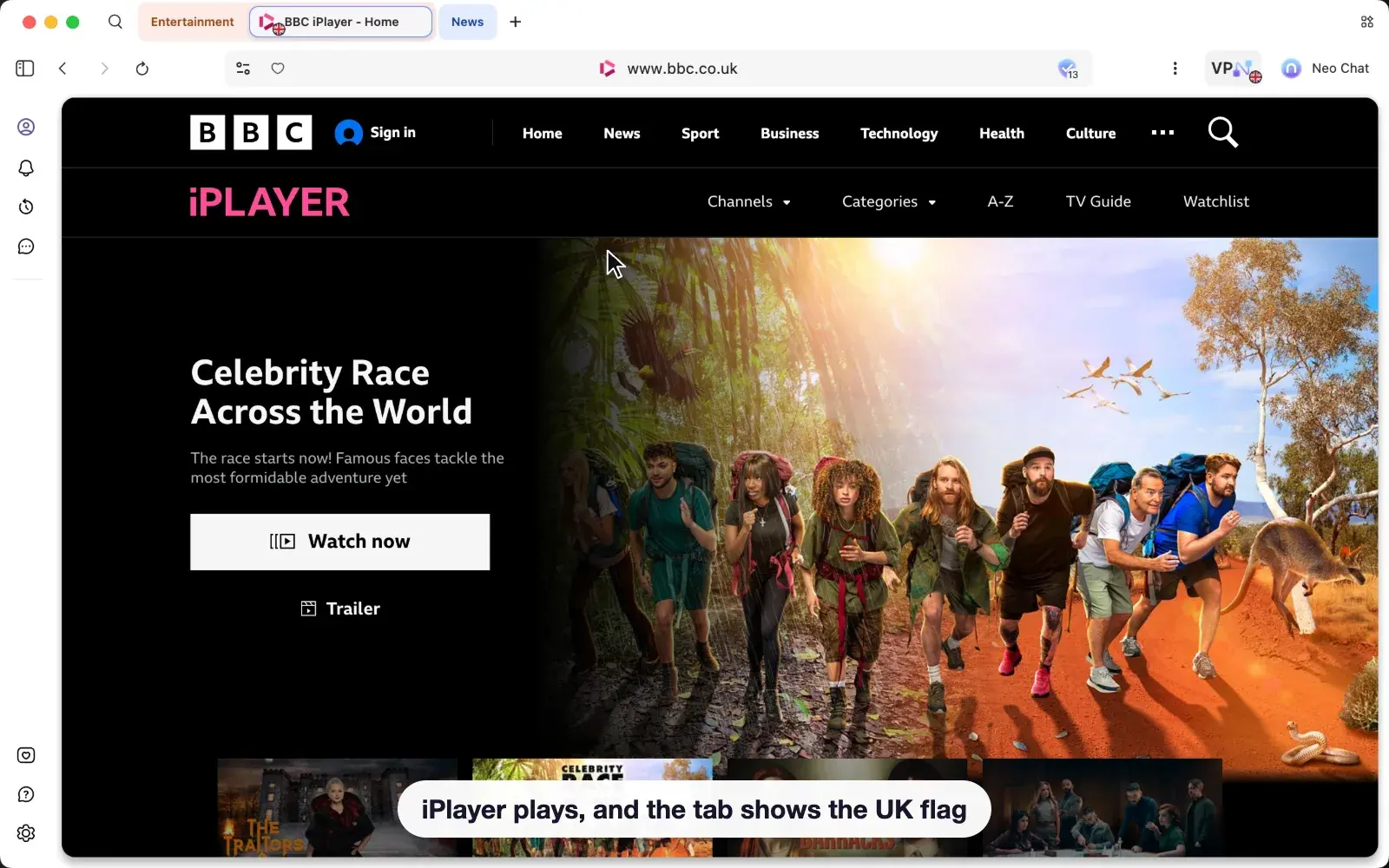
Recorded in Neo: BBC iPlayer is blocked outside the UK. In the VPN panel the location list is switched to “This tab” and UK, London is picked. The tab connects, iPlayer plays and the tab shows a UK flag, while a Hacker News tab stays not connected.

How to

  1. Open the tab you want to change and click VPN .
  2. Click the location under the power button, switch to “This tab”, then pick a location.
  3. The tab connects, and the panel says “This tab is protected” followed by the site. The tab shows the location’s flag, and so does the VPN button while you’re on that tab.
  4. Reload the page if it loaded before you connected.

VPN settings

Open the VPN panel and click the settings icon at the top right, or open Neo Settings › Security and choose Manage next to VPN.

In the toolbar

Show VPN in toolbar
On from the start. Shows the VPN button for quick access to its controls. If you turn it off, reach the VPN settings from Neo Settings › Security.
Show country flag badge
On from the start. Whenever the VPN is connected, shows the flag of the country as a badge on tabs and on the VPN button.

Protection

Activate Kill Switch
Off from the start. Prevents privacy leaks by blocking all internet access if your VPN suddenly disconnects. Pages won’t load until you reconnect the VPN or turn the Kill Switch off.
On untrusted networks (e.g., public Wi-Fi)
Choose “Automatically turn on the VPN”, “Remind me to turn on the VPN” or “Do nothing”. Reminding you is the default. Choose “Do nothing” to stop the reminders.

Auto-connect (all start off)

Auto-Connect VPN on startup
Connect the VPN when the browser starts.
Auto-Connect VPN when Incognito mode opens
Connect the VPN when you open an Incognito window.
Auto-Connect VPN for sensitive data sites
Connect the VPN when you visit sensitive data sites, and turn it off when you leave. Turn it on to see three more options: “Show VPN auto-connected notifications”, “Block saved sensitive sites without VPN”, and “Remembered sensitive sites”, which Neo keeps for 30 days and you can Clear.
Auto-Connect VPN for streaming sites
Connect the VPN when you visit supported streaming broadcaster sites.

Privacy Protection

Neo blocks ads and trackers on every site from the first launch, with nothing to set up. The Privacy Protection panel shows what was blocked on the page you’re on, and lets you change protection for that site only. Your settings for every site are in Neo Settings › Security.

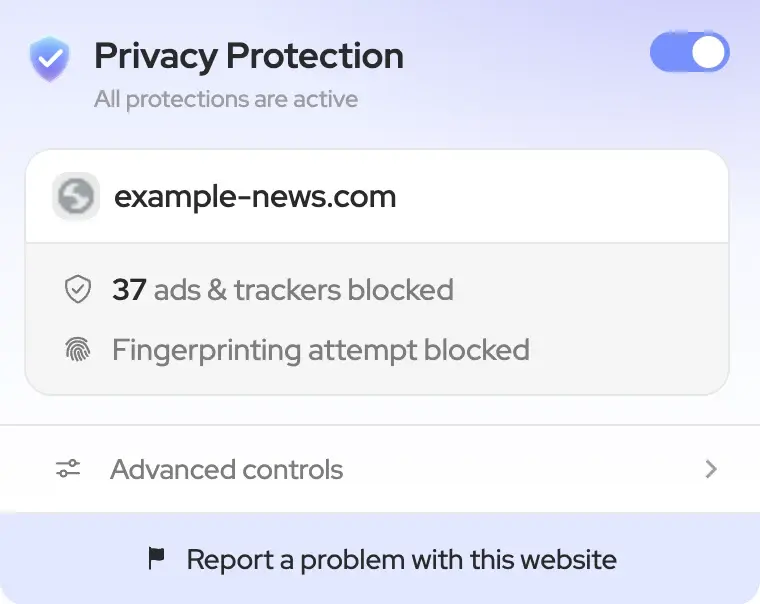
The Privacy Protection panel for a site: All protections are active, 37 ads & trackers blocked, and Fingerprinting attempt blocked.

How to

  1. Click the shield at the right end of the address bar.
  2. See how many ads and trackers were blocked on the page, and whether a fingerprinting attempt was blocked.
  3. Use the switch next to “Privacy Protection” to turn protection off for this site only. Every other site stays protected.
  4. Open “Advanced controls” to turn individual protections on or off.
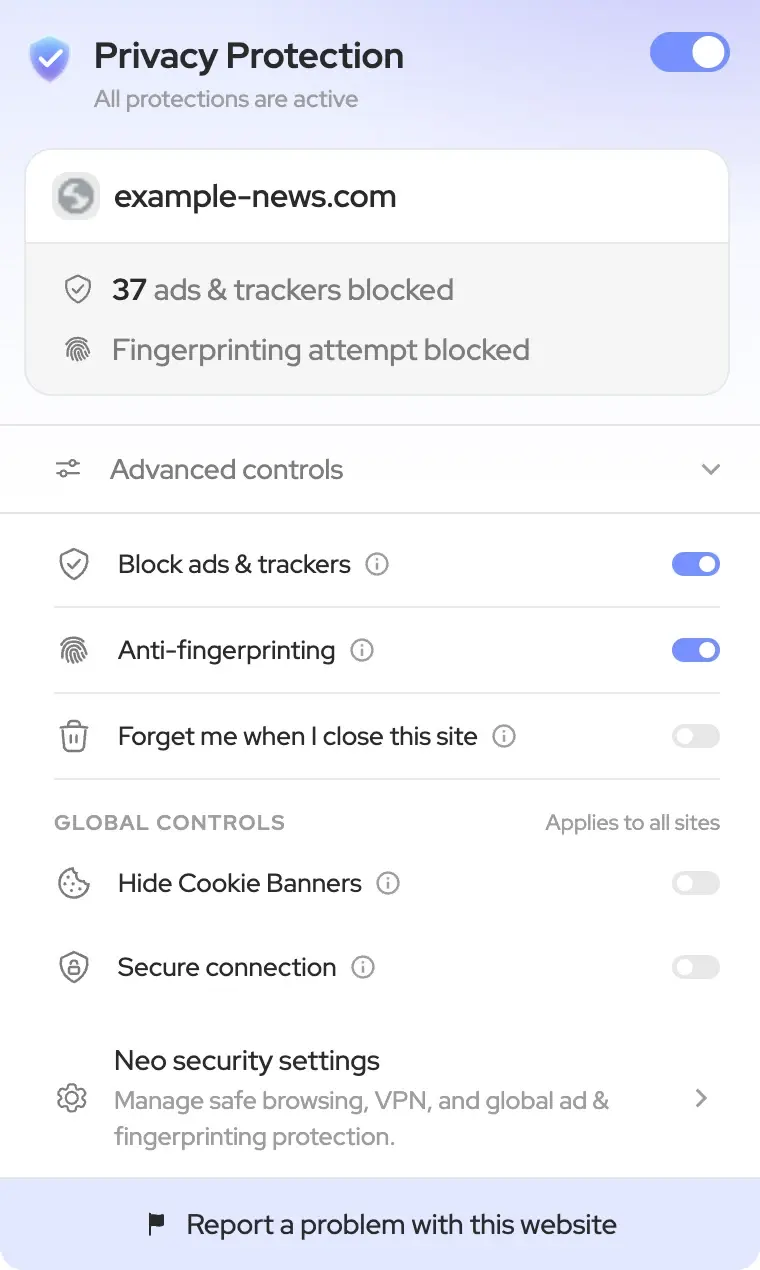
Advanced controls in the Privacy Protection panel: Block ads & trackers, Anti-fingerprinting and Forget me when I close this site for this site, then the global controls Hide Cookie Banners and Secure connection.

Advanced controls

Block ads & trackers
Removes ads and stops trackers from following you across the web. Applies to this site.
Anti-fingerprinting
Prevents sites from identifying you by your device’s unique characteristics. Applies to this site.
Forget me when I close this site
Clears cookies and site data automatically when the last tab is closed.
Hide Cookie Banners
Under Global controls, so it applies to all sites. Automatically hides cookie consent banners on supported websites.
Secure connection
Under Global controls. For sites that don’t support secure connections, get warned before visiting the site.

The line under “Privacy Protection” tells you how protected the site is. Pick a status to see the panel as it shows it.

The Privacy Protection panel: All protections are active, 37 ads & trackers blocked, Fingerprinting attempt blocked.

What the panel’s status means

All protections are active
Ad & tracker blocking and anti-fingerprinting are both working on this site.
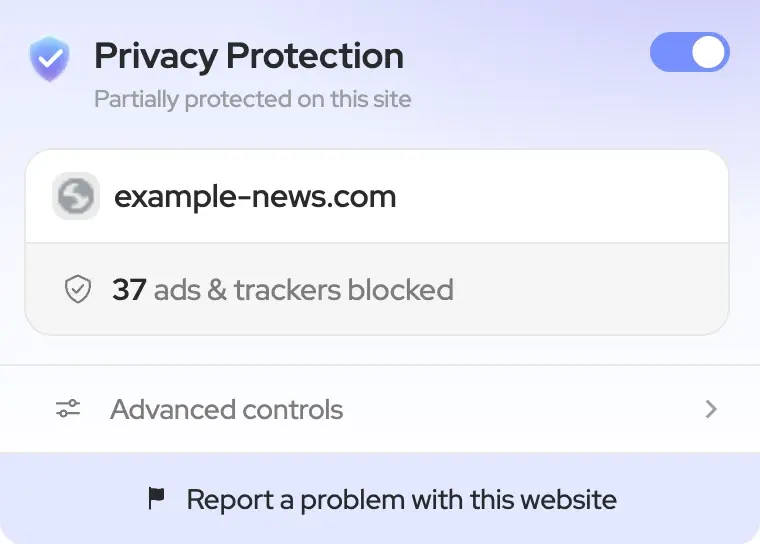
Partially protected on this site
One of them is off for this site. On a new install you’ll see this until you turn on anti-fingerprinting, which starts off.
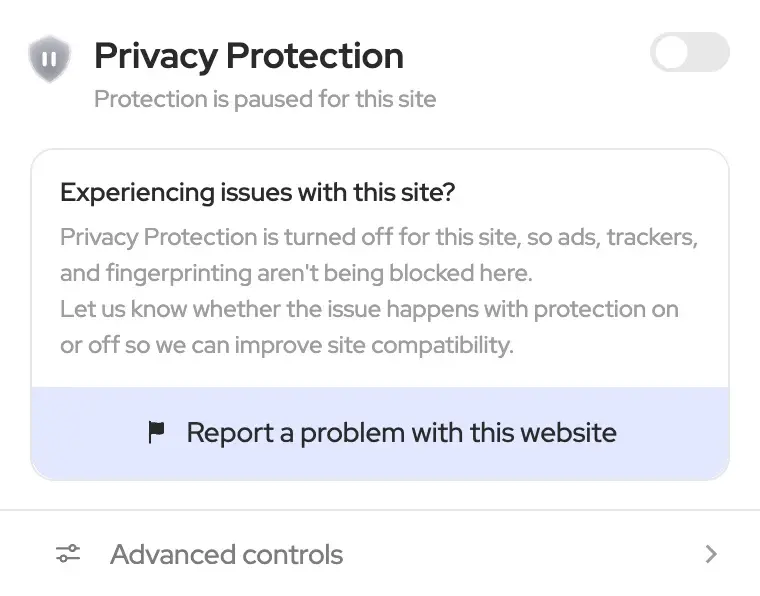
Protection is paused for this site
You turned Privacy Protection off for this site, so ads, trackers and fingerprinting aren’t being blocked here. The panel asks “Experiencing issues with this site?” so you can report it.
All protections are off globally
Ad & tracker blocking and anti-fingerprinting are both turned off in your Neo security settings, so nothing is blocked on any site. Choose “Open Neo security settings” to turn them back on.

Blocking ads

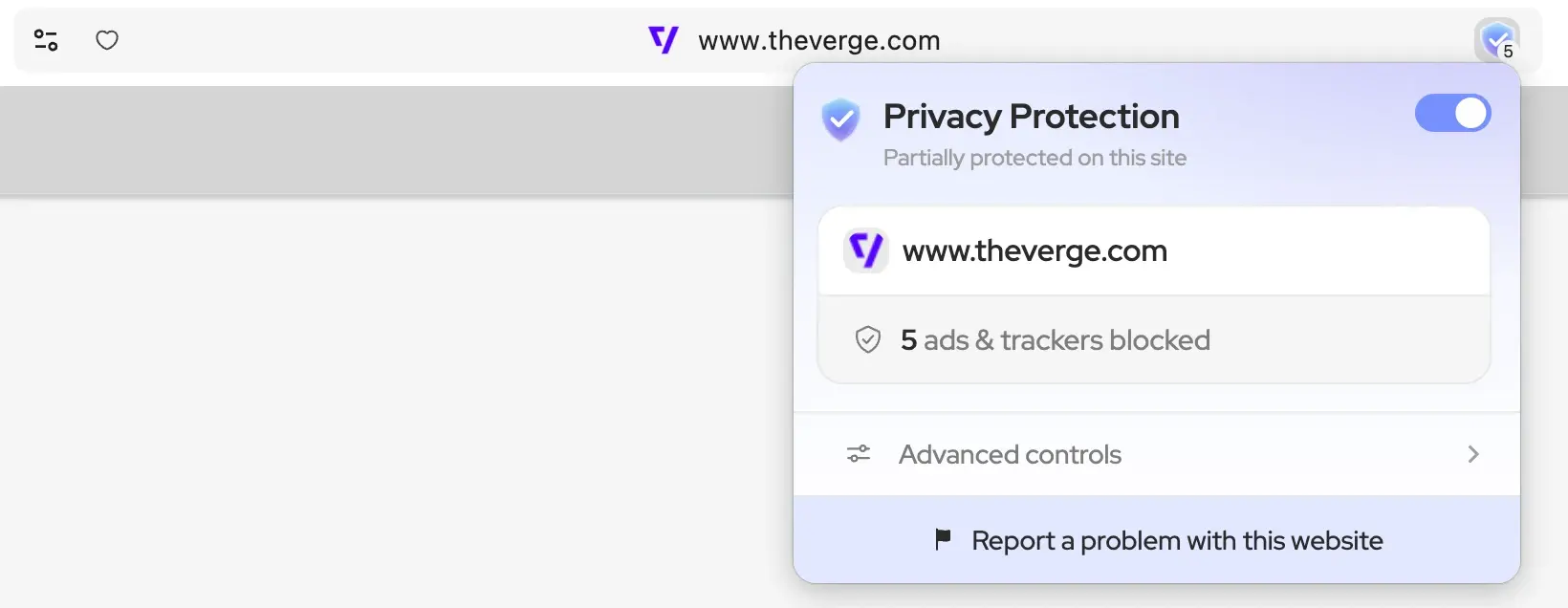
Ads, pop-ups and the trackers behind them are blocked before they load. Pages get straight to the point, and there is less to download. The number on the shield in the address bar shows how many were blocked on the page you’re on. Click it for the Privacy Protection panel.

Neo on www.theverge.com: the shield in the address bar shows a count of 5, and its Privacy Protection panel reads “5 ads & trackers blocked”. The ad space at the top of the page is empty.

Settings in Neo Settings › Security

AdBlock
On from the start. Blocks ads, and the trackers that come with them, on every site. Turn it off to stop blocking everywhere.
Allow acceptable ads
On from the start. When on, ads that count as acceptable are still shown on pages. Turn it off to block those too.
Show blocked ads count
On from the start. Shows the number of blocked ads on the shield. Turn it off for a plain shield. Blocking carries on either way.
Excluded Sites from AdBlocking
Sites you add here show ads. Choose Manage, then “Add site” and Save. To undo, remove the site from the list, or choose “Delete all sites”.
Advanced Adblock Settings
Choose Manage to pick the filter lists AdBlock uses. See “Filter lists” below.

Filter lists, in Advanced Adblock Settings

Ads, trackers and more
Two lists are on from the start: EasyPrivacy, which blocks trackers, and ABP filters, which catches ads that try to get around ad blockers. You can add Fanboy’s Notifications Blocking List, Fanboy’s Cookiemonster List and Fanboy’s Social Blocking List, for notification prompts, cookie notices and social media widgets.
Regional
Lists for ads made for sites in a particular language or country, from ABPindo and EasyList Germany to RuAdList and Turkish Filters. If you often read sites in another language, turn on its list.
Select All / Deselect All
Turns every list on or off at once. More lists catch more, but can also break more sites. The (i) next to a list shows where it comes from.

Tracker blocking

Trackers are hidden requests that report your visits to ad and analytics companies. Neo refuses them before they leave your browser, so one company can’t follow you from site to site. Tracker blocking is part of AdBlock, and shares its switch.

Go further with Advanced Privacy, in Neo Settings › Security

Remove tracking IDs from links
Off from the start. Removes unique identifiers from links that sites and advertisers can use to recognize and track you.
Prevent referrer tracking
Off from the start, so its button reads Enable. Prevents sites from seeing which page you came from by removing referrer information from your requests.

Anti-fingerprinting

Some sites recognize you from details of your device, such as screen size, fonts and time zone. Anti-fingerprinting limits what pages can learn about your device, so tracking is harder while you browse normally. It starts off, so turn it on when you want it.

Turn it on

  1. Open Neo Settings › Security and choose Manage next to Anti-Fingerprinting.
  2. Turn on “Anti-Fingerprinting”.
  3. Ten signals appear below it, all protected. Turn off any one you don’t want masked.

The signals it protects

Device memory
Hides or standardizes the amount of RAM your device reports, so memory size can’t be used as a stable fingerprint.
Canvas
Prevents sites from fingerprinting you by reading pixels from hidden images and drawings.
Audio
Keeps sites from uniquely identifying your device based on how it processes sound.
Installed fonts
Reduces or masks which fonts are exposed to pages, so your system’s font list can’t identify you.
CPU cores (logical processors)
Limits or normalizes the number of processor cores your device reports, which is often used to tell devices apart.
Language & locale
Standardizes or masks your browser and system language settings, so they are less useful as a unique signal across sites.
Screen & display
Normalizes screen resolution, color depth and related display properties, so your monitor setup is harder to use as a fingerprint.
User-Agent string
Adjusts the browser identification that sites receive, so version and platform details are less distinctive.
WebGL & GPU
Limits the graphics and GPU information pages can read, so your hardware can’t be used as a stable fingerprint.
Resource timing
Strips detailed timing from page loads, so network behavior can’t be used as a fingerprint.

Forget a site when you close it

Cookies and site data let a site remember you between visits. For sites you don’t want remembering you, Neo can clear them for you.

How to

  1. On the site, click the shield at the right end of the address bar.
  2. Open “Advanced controls” and turn on “Forget me when I close this site”.
  3. Cookies and site data are cleared automatically when the last tab of the site is closed.

Scam and dangerous site protection

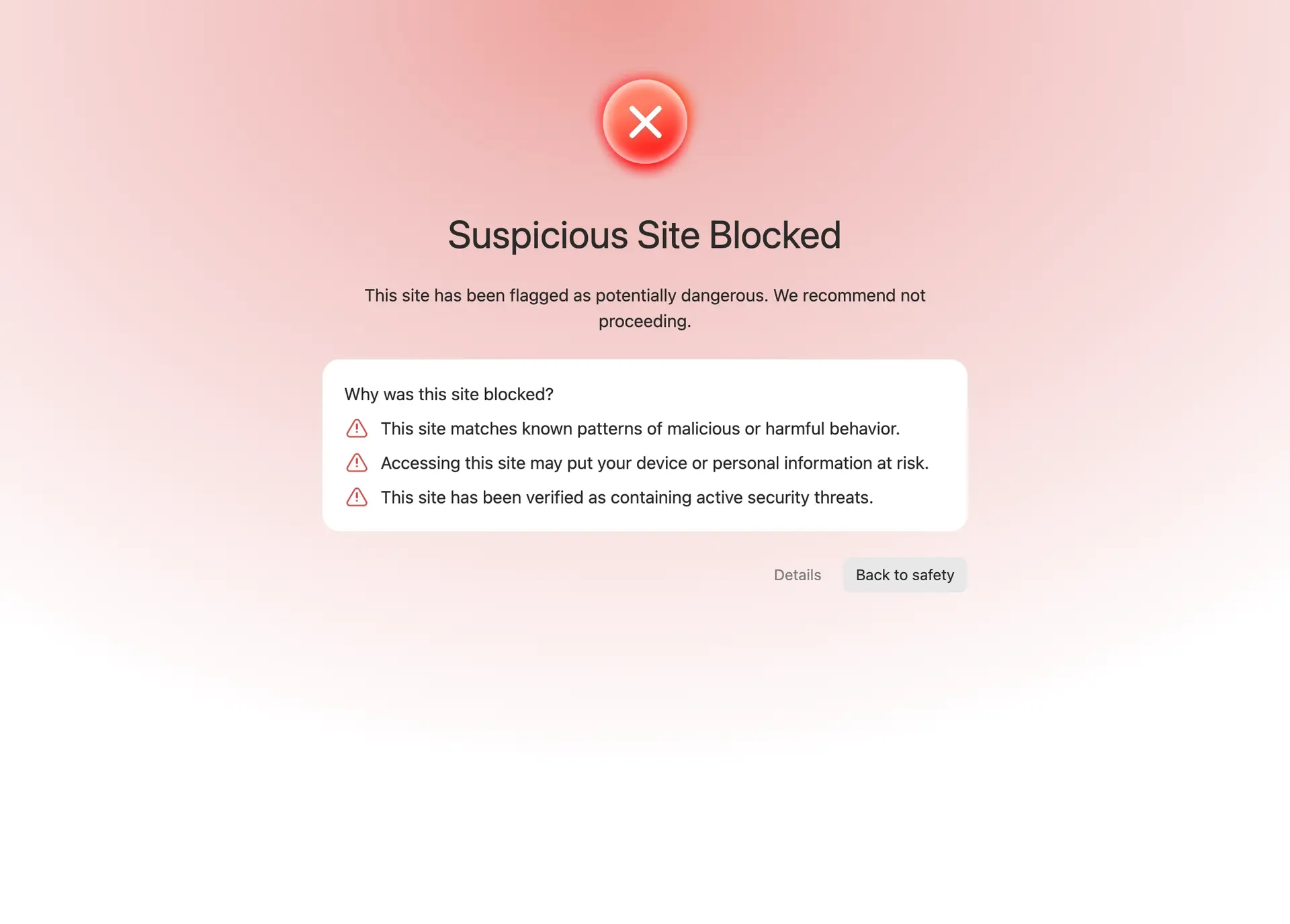
WebShield checks where links lead. If a page is a known scam, phishing or dangerous site, Neo stops it before it loads and shows “Suspicious Site Blocked” instead.

The page Neo shows instead of a dangerous site: Suspicious Site Blocked, the reasons it was blocked, and a Back to safety button.
What you see if Neo stops a page.

What it protects you from

  • Fake login and payment pagesPages built to steal passwords or card details are blocked, even when the link looks genuine.
  • Dangerous sitesSites known for malware or other harmful behavior are stopped before they can reach your device.
  • Scam emailsIn Gmail, Neo looks at the message itself and warns you when an email is trying to get your details.

If Neo blocks a page

  1. Choose “Back to safety”, or close the tab.
  2. Don’t enter passwords or card details on a page you reached from an unexpected link, message or ad.
  3. If you know the site and trust it, choose Details. At the end is a link to visit the site anyway, at your own risk.

Email Phishing Protection

Email Phishing Protection scans Gmail emails for phishing attempts and suspicious content. It is on from the start. When an email looks unsafe, Neo shows “Suspicious Email Detected” above it.

If you see a warning

  1. Avoid clicking the email’s links or sharing information.
  2. If you know the sender and the message is expected, choose Dismiss.
  3. To stop scanning emails, turn off “Email Phishing Protection” in Neo Settings › Security, or choose “Disable Protection” on the warning.

Warnings for insecure sites

Most sites use a secure (HTTPS) connection, so what you send them can’t be read on the way. With “Secure connection” on, Neo warns you before visiting a site that doesn’t support one.

How to

  1. Click the shield at the right end of the address bar.
  2. Open “Advanced controls” and, under Global controls, turn on “Secure connection”. It applies to all sites.

Still need help?

Choose “Contact Neo Team” in Neo’s side bar to tell us what’s going on, or check the FAQ.