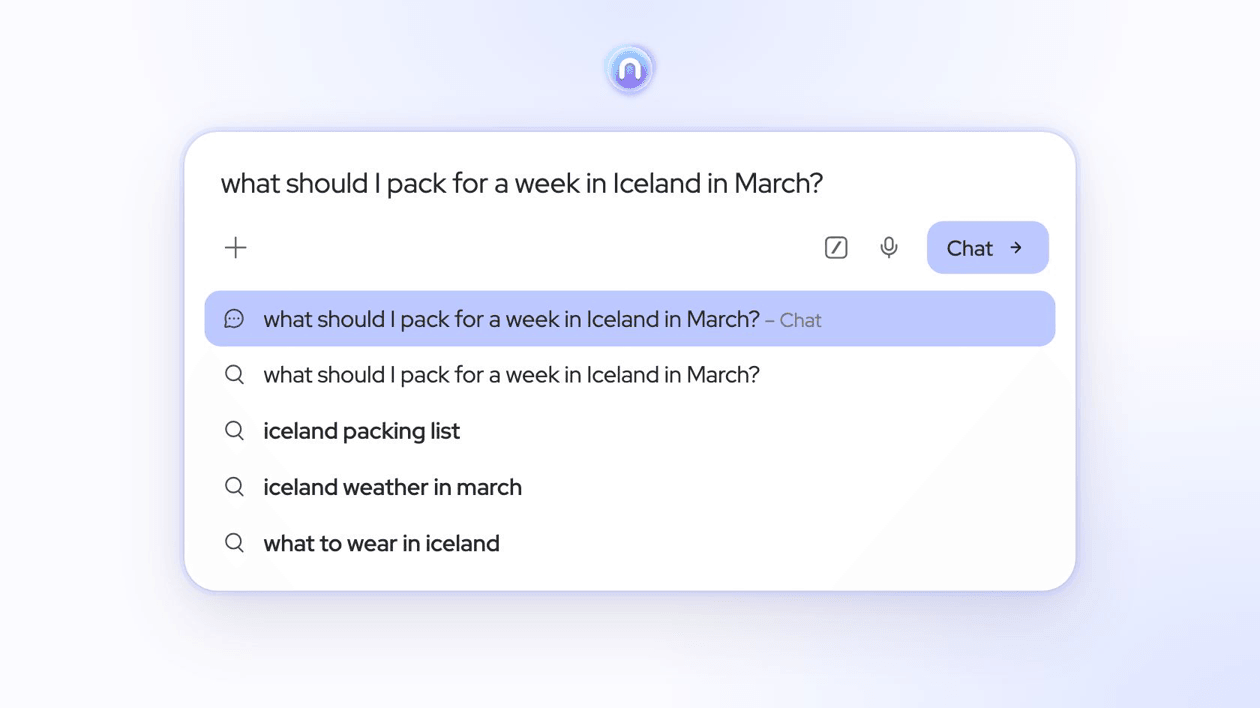
The Magic Box is where you search, type an address, or ask a question. Neo works out whether you want search results or an answer, and you can always pick the other one.
A question typed into the Magic Box turns into a chat.
How to
Press Ctrl + L (⌘ + L on Mac), or click the Magic Box on the Magic Page (your New Tab page).
Type what you’re looking for. Press Enter to go with Neo’s choice.
To get an answer instead of results, choose “Chat”. To see results instead of an answer, choose “Search”.
Magic Box mode
Smart
Automatically chooses search or chat based on your query.
The side bar runs down the left edge of the window. At the top are You for your profile and account, Reminders , History and Chat History . Below them are the sites you’ve added as favorites, and at the bottom are Share Neo , Contact Neo Team and Neo Settings .
YouYour profile
Reminders
History
Chat HistoryYour chats with Neo
Your favorite sitesAdded with the heart in the address bar
Share Neo
Contact Neo Team
Neo Settings
The side bar from the top: You, Reminders, History and Chat History, then your favorite sites, then Share Neo, Contact Neo Team and Neo Settings at the bottom.
Add a favorite site
Open the site you want to keep close.
Click the heart (“Add shortcut”) at the left of the address bar.
The site is added to the side bar as a shortcut. Right-click it and choose “Remove shortcut” to take it off.
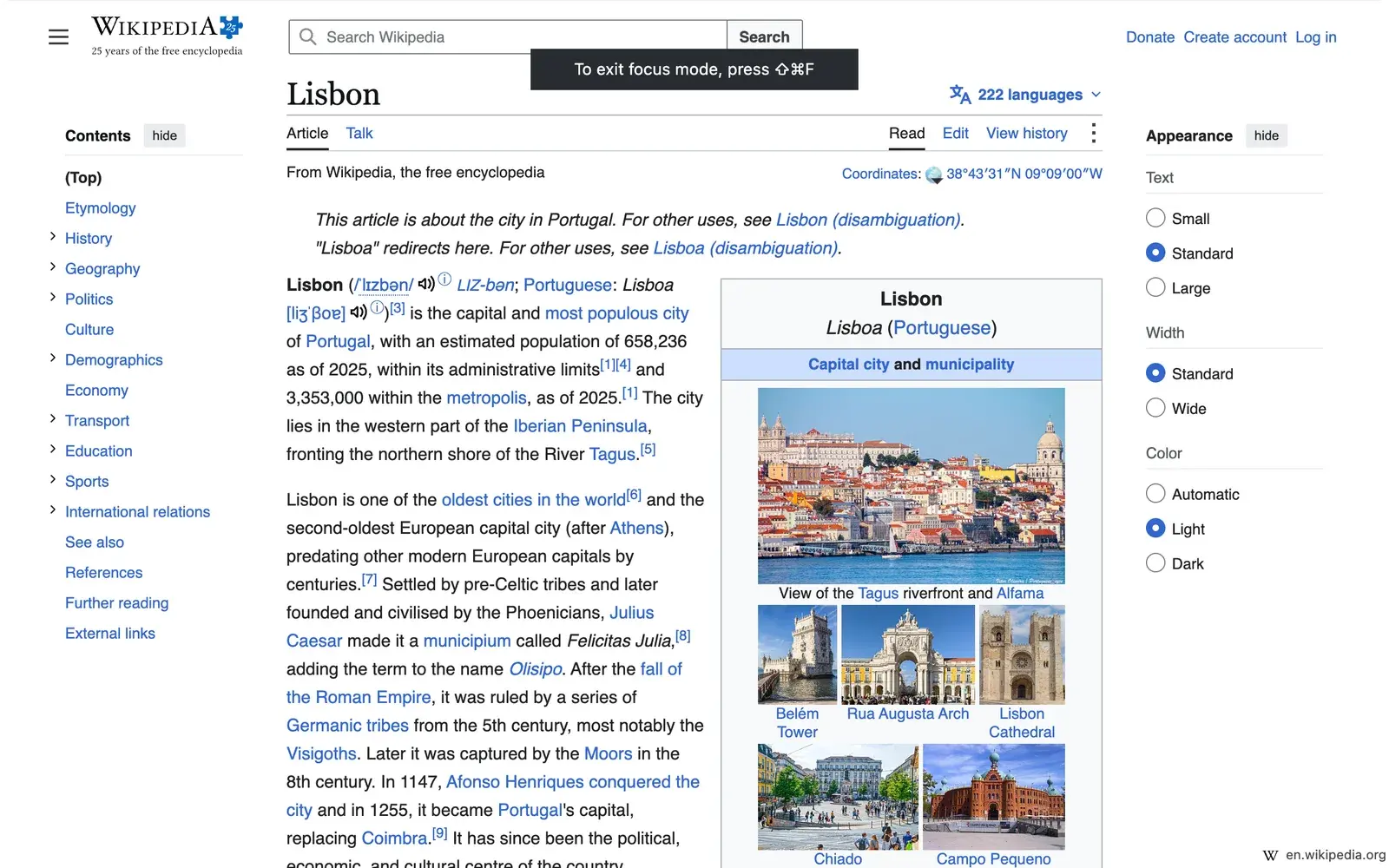
Focus Mode gives the page you’re on the whole window. The tab strip, the address bar, the toolbar and the side bar all step out of the way, so there is nothing between you and what you’re reading, watching or writing.
Turn it on
Press ⌘ + Shift + F on Mac, or Ctrl + Shift + F on Windows.
Or right-click an empty part of the tab strip and choose “Focus Mode”.
While you’re in Focus Mode
Move the pointer to the top of the window to show your tabs and the address bar.
Move it to the edge of the window to show the side bar.
Move the pointer away and they hide again. A small label in the bottom-right corner shows which site you’re on.
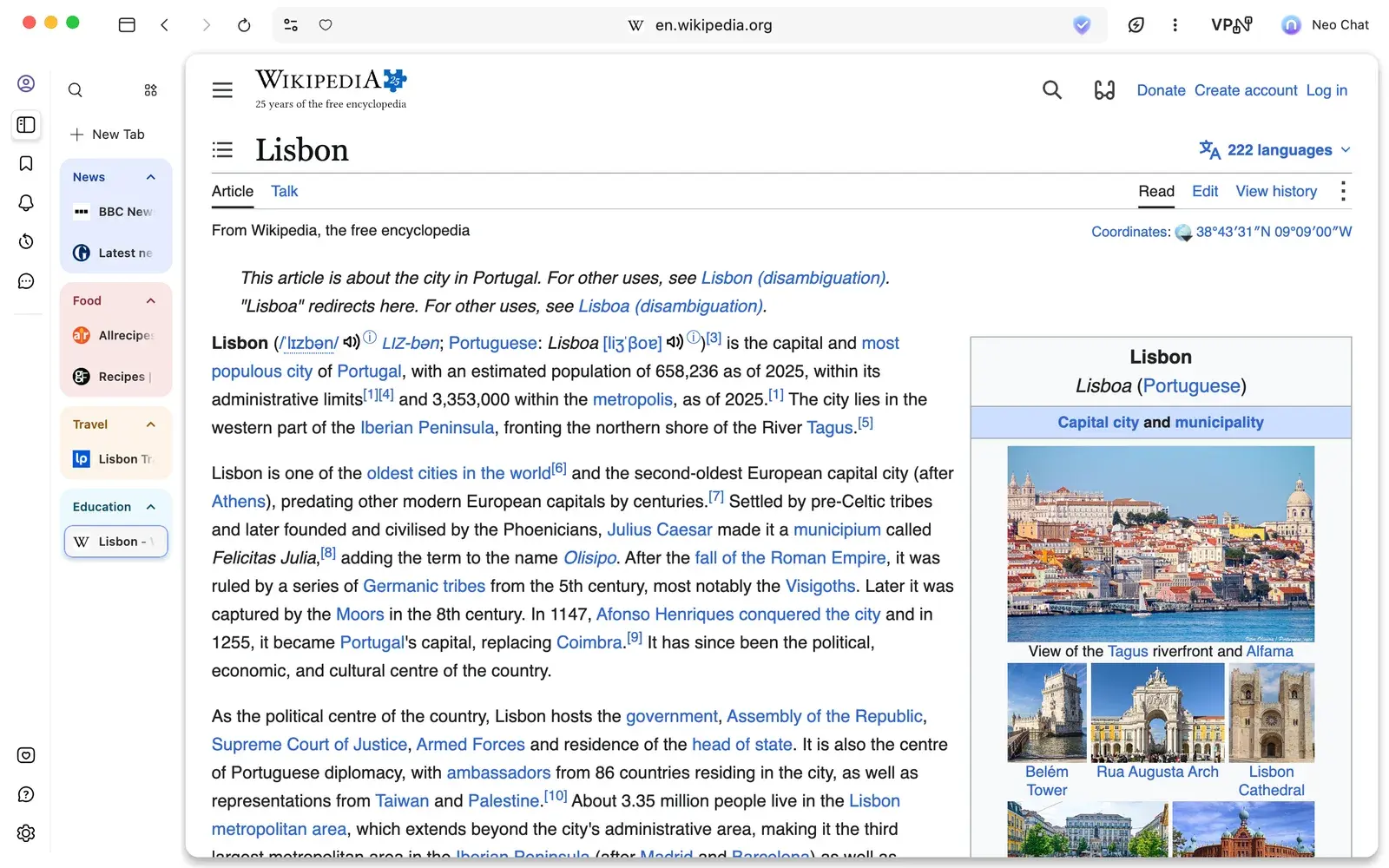
With many tabs open, tabs along the top get squeezed until you can’t tell them apart. Vertical tabs list them down the left of the window instead, one under another and still in their groups, with tab search and New Tab above them.
How to
Click “Turn On Vertical Tabs” , the first button in the toolbar, to the left of Back. Or turn on “Vertical tabs” in Neo Settings › Tabs.
Right-click the side bar and choose “Collapse tabs” to keep only the icons.
Click the same button, now “Turn Off Vertical Tabs”, to go back to tabs along the top. Vertical tabs start off.
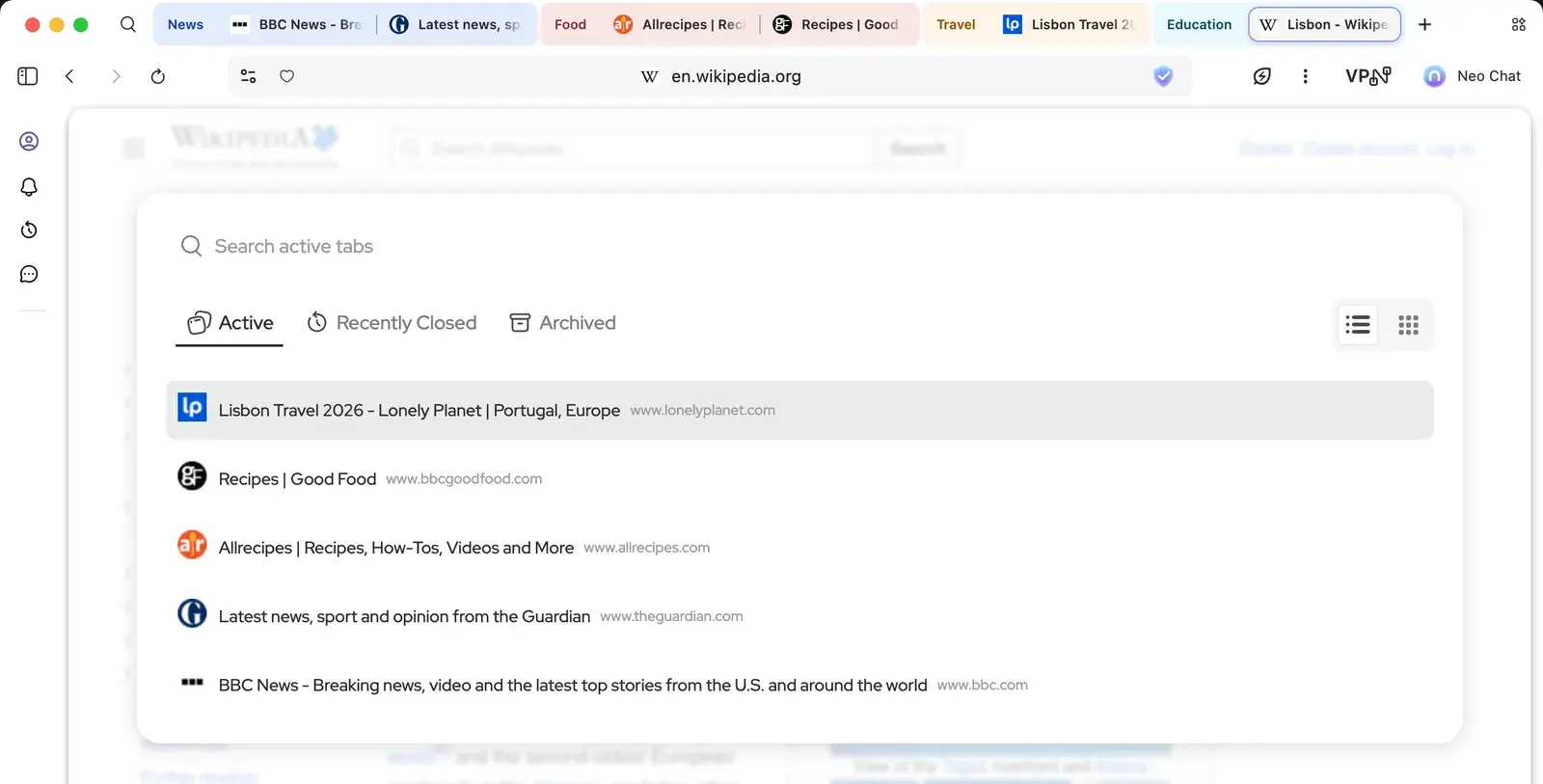
Tab search finds a tab by its title or address, across every window. Tabs Neo has archived are there too.
How to
Press Ctrl + Shift + A (⌘ + Shift + A on Mac), or click tab search at the left end of the tab strip. With vertical tabs, it’s at the top of the tab list.
Start typing and choose the tab to switch to it.
Switch to Recently Closed to find a tab you closed, or to Archived for tabs Neo archived for you.
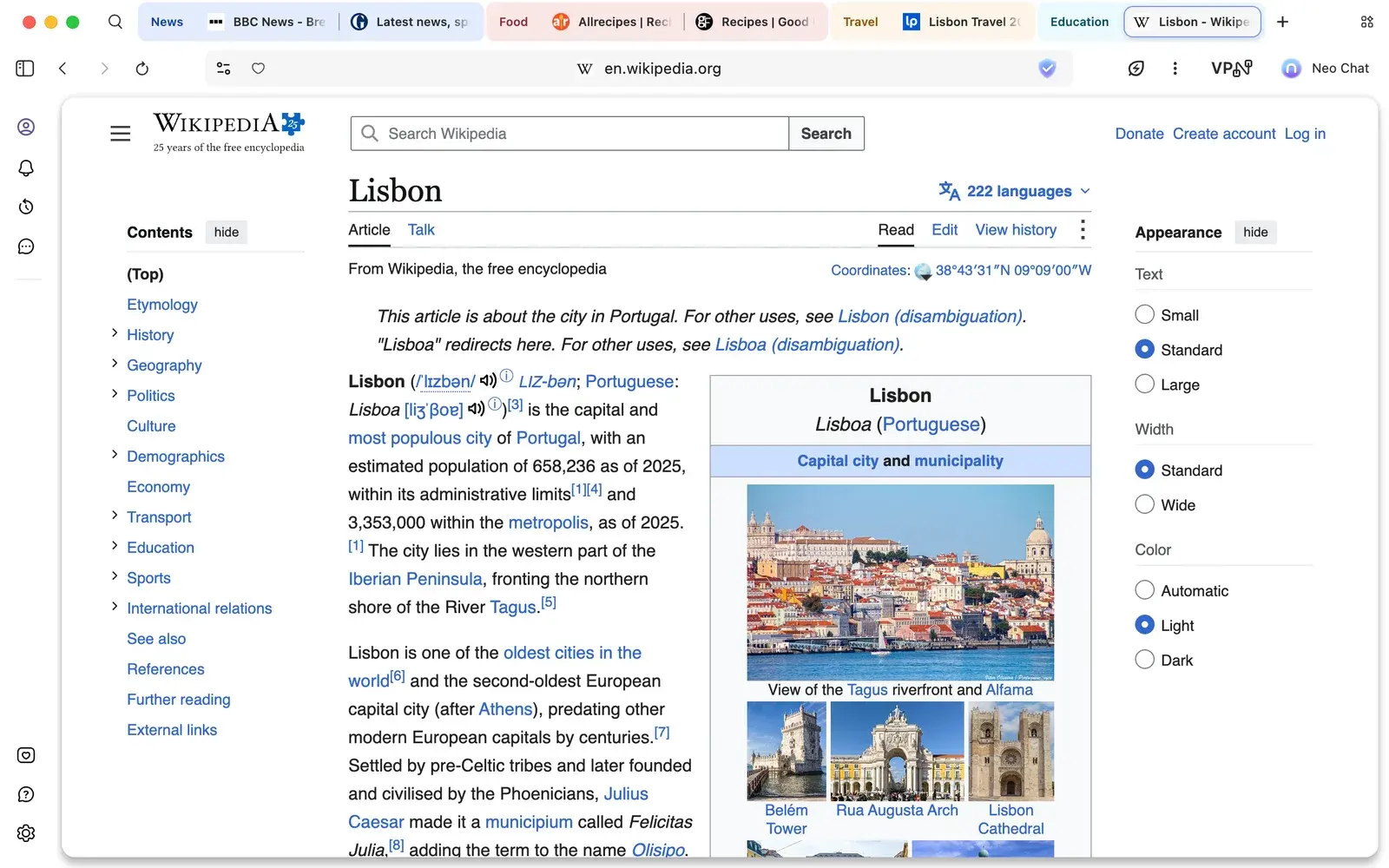
Smart tab grouping puts related tabs together as you open them, so a trip you’re planning and the news you’re reading don’t end up mixed. Each group gets a color and a name for what’s in it, like News, Food or Travel.
How to
Smart tab grouping is on from the start. Turn it off or on again with “Turn smart tab grouping on/off” , the button at the right end of the tab strip, or with “Smart tab grouping” in Neo Settings › Tabs.
Right-click a tab and choose “Do not group this tab during current session” to keep one tab out.
Choose “Never group pages from this host” to keep every page from a site out of groups.
Tabs you haven’t touched in a while still use memory. Tab archiving closes them for you and keeps them in Archived Tabs, so you can restore any of them later.
Choose how it works
Ask me on first archive
The starting setting. The first time, Neo asks “Archive unused tabs to free up space?” and you choose how it should work.
Archive automatically
Unused tabs are archived in the background, no prompts.
Ask before each archive
Neo asks you before archiving each time.
Off
Keep your tabs open and manage them yourself.
Change the settings
Open Neo Settings and go to Tabs. With tab archiving on, two more settings appear below it.
Under “Tab archiving strength”, choose how often Neo archives: every few days, every few hours, or every hour.
Under “Keep archived tabs for”, choose 7, 14 or 30 days, or “Keep forever”.
With “Picture-in-Picture for videos” on, videos automatically open in a floating window while you browse, so you can keep watching while you do something else. It is on from the start.
How to
To stop videos opening in a floating window, turn off “Picture-in-Picture for videos” in Neo Settings › Tabs.
 for your profile and account, Reminders
 , History
 and Chat History
 . Below them are the sites you’ve added as favorites, and at the bottom are Share Neo
 , Contact Neo Team
 and Neo Settings
 .

 (“Add shortcut”) at the left of the address bar.
 , the first button in the toolbar, to the left of Back. Or turn on “Vertical tabs” in Neo Settings › Tabs.
 at the left end of the tab strip. With vertical tabs, it’s at the top of the tab list.

 , the button at the right end of the tab strip, or with “Smart tab grouping” in Neo Settings › Tabs.